What technology is most useful for assisted living residents?
The most useful technology is usually simple, familiar, and connected to a daily need. In assisted living, devices can help residents communicate with family, remember appointments, participate in activities, manage entertainment, and respond more quickly during an emergency.
Useful options may include:
- A mobile phone for calls, texts, and emergency communication
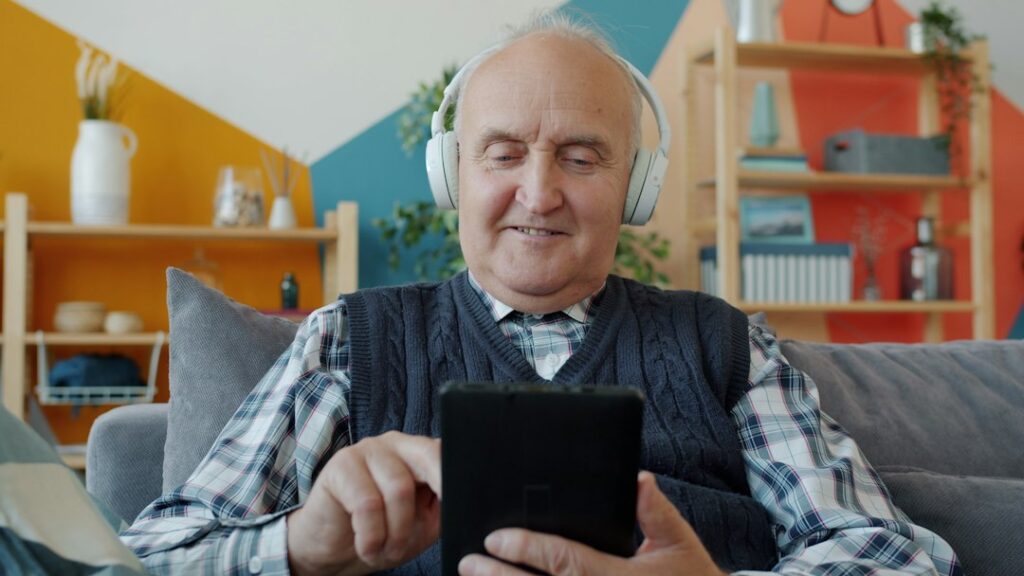
- A tablet for video calls, reading, games, photographs, and activities
- A television with a simple remote control
- A wearable alert device for requesting help
- A digital calendar or reminder system
- Voice-controlled tools for setting timers, checking the weather, or making hands-free calls
Technology does not need to be complicated to be valuable. A device that performs two or three tasks reliably may be more helpful than one with many unused features.
How can seniors make a smartphone easier to use?
A smartphone can be adjusted to reduce eye strain, confusion, and accidental taps. Begin with the accessibility settings rather than assuming the factory setup is suitable.
Helpful changes include:
- Increasing the text size and screen brightness
- Turning on larger icons or display magnification
- Increasing the volume for calls and alerts
- Using a simple home screen with only essential apps
- Adding frequently called contacts as large picture buttons
- Turning on captions for videos and phone calls when available
- Choosing a strong contrast between text and the background
- Setting the screen to remain active longer before locking
A family member or trusted support person can remove duplicate apps, old notifications, and unnecessary shortcuts. Too many icons can make a phone feel difficult even when the device itself is working properly.
Residents should also learn how to answer a call, call a saved contact, charge the phone, and reach emergency assistance. These basic actions matter more than knowing every feature.
What technology helps residents stay connected with family?
Video calling can help residents maintain regular contact with relatives who cannot visit often. It may be especially helpful during severe winter weather, transportation problems, illness precautions, or periods when family members are traveling.
A tablet often provides a larger screen than a phone and may be easier for conversations. Before a video call, place the device on a stable surface at eye level. Good lighting should come from in front of the resident rather than behind the resident, which can create a dark silhouette.
A predictable routine can make video calls less stressful. For example, a family may choose the same evening each week. Written instructions with large print can explain how to open the calling app, accept a call, adjust the volume, and end the conversation.
If a resident has hearing loss, captions, headphones, or a device with amplified sound may improve communication. Hearing devices may also need to be placed in a compatible listening mode, depending on the equipment.
How can technology support memory and daily routines?
Reminders can support independence, but they should not replace an established care plan or medical instructions. A phone, tablet, clock, or voice assistant can provide prompts for meals, activities, hydration, appointments, and bedtime routines.
Useful reminder practices include:
- Use one main calendar instead of several competing systems
- Set reminders with plain language, such as “Leave for activity”
- Use different sounds for medication-related reminders and ordinary events
- Review reminders regularly so outdated alerts do not create confusion
- Keep a printed backup schedule in a familiar location
Medication reminders require special care. A digital alert can remind someone that it is time to check a medication schedule, but it does not confirm that the correct medicine was taken. Medication storage, timing, and administration should follow the resident’s care instructions.
How can residents avoid technology scams?
The safest rule is to pause before responding to an unexpected request for money, passwords, account numbers, gift cards, or remote access to a device. Scammers may contact people by phone, text message, email, social media, or pop-up alerts.
Warning signs include:
- A message claiming an urgent problem must be fixed immediately
- A caller asking for a verification code sent to the phone
- A request to move money or purchase gift cards
- A demand for remote access to a phone, tablet, or computer
- A message stating that a prize, refund, or inheritance is waiting
- A caller pretending to be a relative who urgently needs financial help
Residents should not click unexpected links or share passwords by telephone. If a message may be legitimate, verify it through a known phone number or by speaking with a trusted person. Do not rely on the contact information provided in the suspicious message.
A helpful household practice is to establish a family verification phrase or question. This can help confirm whether an urgent request truly came from a relative.
What privacy settings should seniors review?

Privacy settings determine who can see personal information, photographs, location details, and account activity. Residents should review these settings with someone they trust, particularly if they use social media, online banking, email, or health-related applications.
Basic protections include:
- Use a different password for important accounts
- Turn on multifactor authentication when practical
- Avoid saving financial information in unfamiliar applications
- Lock the device with a passcode, fingerprint, or other available method
- Keep the operating system and applications updated
- Turn off location sharing unless it serves a clear purpose
- Review which apps can use the microphone, camera, and contacts
Passwords should not be written on a note attached to the device. A secure password manager or a carefully maintained private record may be safer, depending on the resident’s abilities and support system.
How should technology be used during power outages or severe weather?
Seasonal storms and winter conditions in New Kensington can affect transportation, power, and communication. A charged phone can be useful during an outage, but it should not be the only emergency plan.
Residents may benefit from keeping:
- A charging cable in a consistent location
- A portable battery that is charged periodically
- Important phone numbers written on paper
- A flashlight that is easy to reach
- A list of medications and essential health information
- Hearing-device batteries or charging equipment, if applicable
Emergency alerts should be enabled, but residents should understand that alerts can be loud or confusing. A trusted support person can help set the alert types and explain what different notifications mean.
Do not use candles near oxygen equipment, bedding, curtains, or other flammable materials. Technology may provide information during an emergency, but ordinary safety procedures and staff instructions remain essential.
What should residents do if a device becomes confusing or stops working?
First, pause rather than repeatedly tapping the screen. Check whether the device is charged, the volume is turned up, and the correct button is being pressed. A simple restart often resolves minor problems.
Keep a short troubleshooting card near the device with steps such as:
- Check the charger
- Confirm the device is not muted
- Restart the device
- Move closer to the wireless connection if appropriate
- Write down any error message
- Ask a trusted person before changing account or security settings
Residents should not feel embarrassed about needing help. Technology changes frequently, and difficulty using a device does not indicate a lack of ability. The goal is dependable communication, comfort, safety, and participation—not mastering every new feature.